How it works
Clean with care – because every home deserves attention.
What this system does and how to use it, written separately for the three groups who work with it. They barely overlap, so one guide for everyone would be too long for everyone.
The roster the office sets for each cleaner, minus leave, minus the jobs already planned with travel time around them, decides exactly what a customer can book.
That is what it comes down to. A customer is never shown a half-day the job no longer fits into, and the office never has to undo a double booking.
Part one
For customers
Owners and landlords in Bansko. Mostly on a phone, between two guests. You do not need an account to book.
Looking around and comparing prices
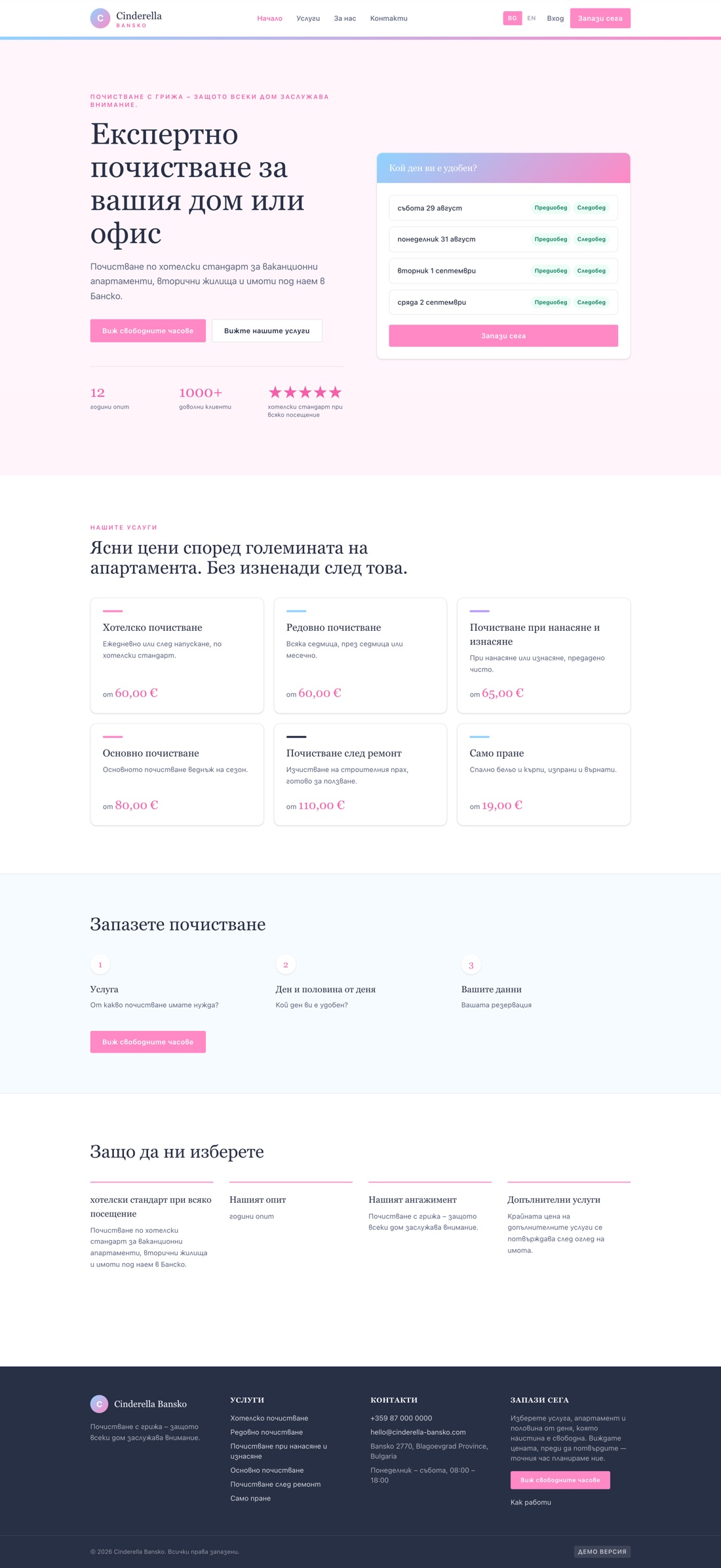
The home page shows the next days that are genuinely free — not a contact form you wait on, but the diary itself.
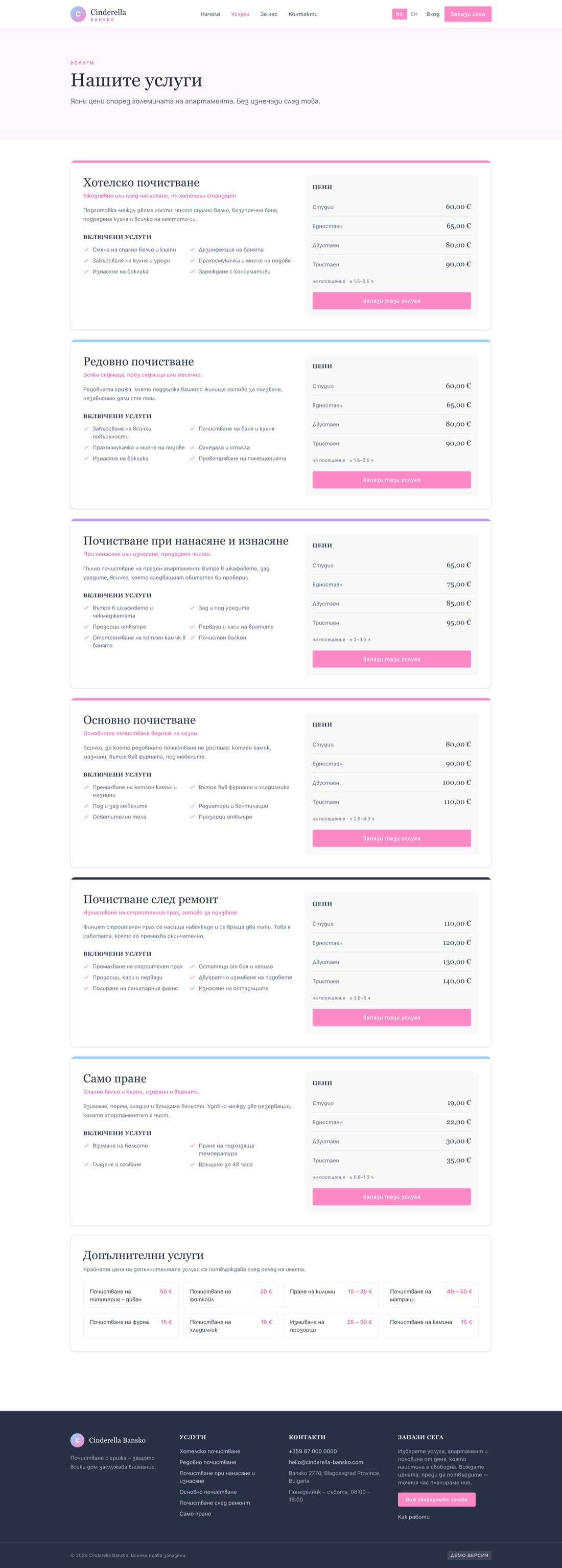
Every service lists a price per apartment size and exactly what is included. Where an add-on has a price range, we quote the lower figure and confirm the final price after seeing the property. You will never be shown an amount that quietly goes up later.
Booking in three steps
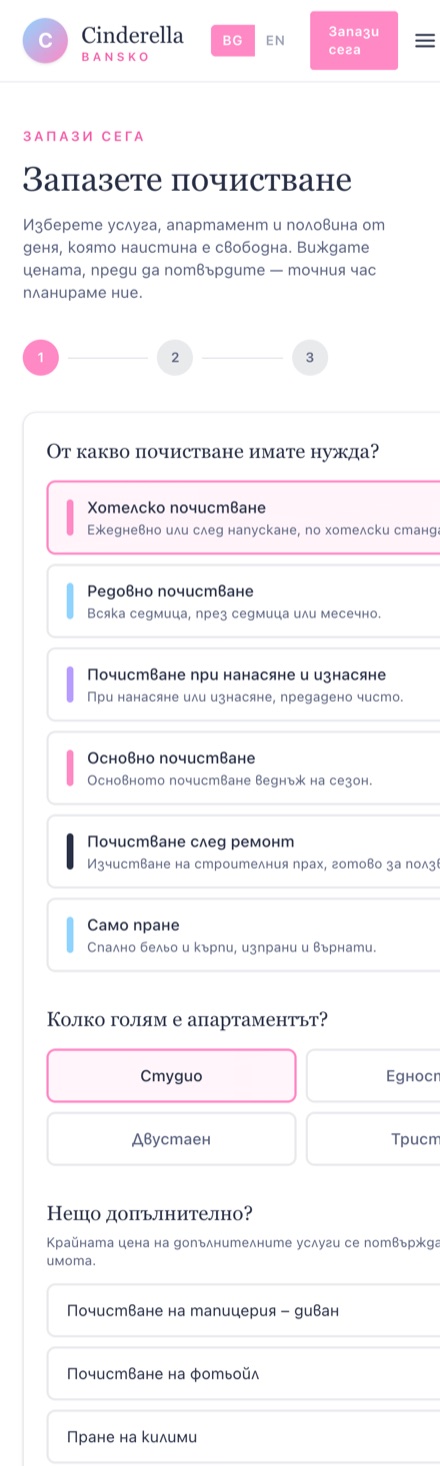
- 1 What and where Service, apartment size, any extras. The price follows along: with every choice you see the total and the expected duration. Signed in, you simply pick your property and the size and address fill themselves in.
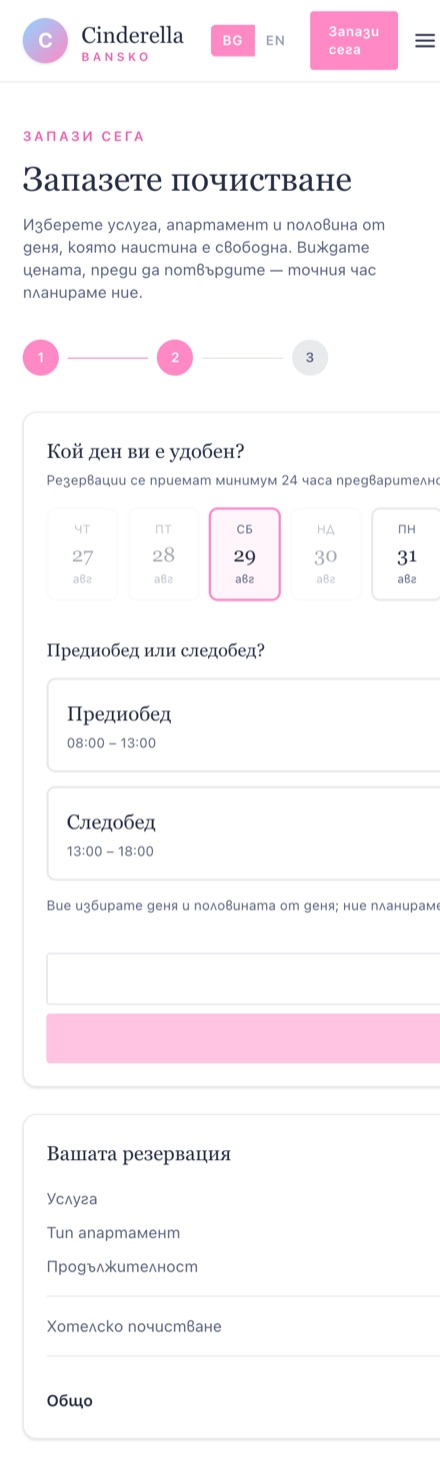
- 2 When A day, and morning or afternoon. Not an exact hour.
- 3 Your details The last field is the most useful one on the form: where the key is, whether there is a cat, which corner always needs attention. That goes straight to the cleaner’s screen.
Why not an exact hour?
The office fits the jobs of one day together: flats in the same building get done one after the other. A customer picking a single hour from a list breaks that up, and the team spends more time driving than cleaning.
You agree the half-day, the office sets the hour and confirms it to you.
Days with no room are greyed out, and a half-day already full for that service is marked as taken. A deep clean of a three-bedroom flat simply takes longer than a laundry run, so what you can book depends on what you chose in step one.
| Who books | What happens |
|---|---|
| New customer | The request arrives as pending. The office reviews it and confirms. |
| Existing customer | The booking is confirmed straight away. You are known, so nobody needs to look at it again. |
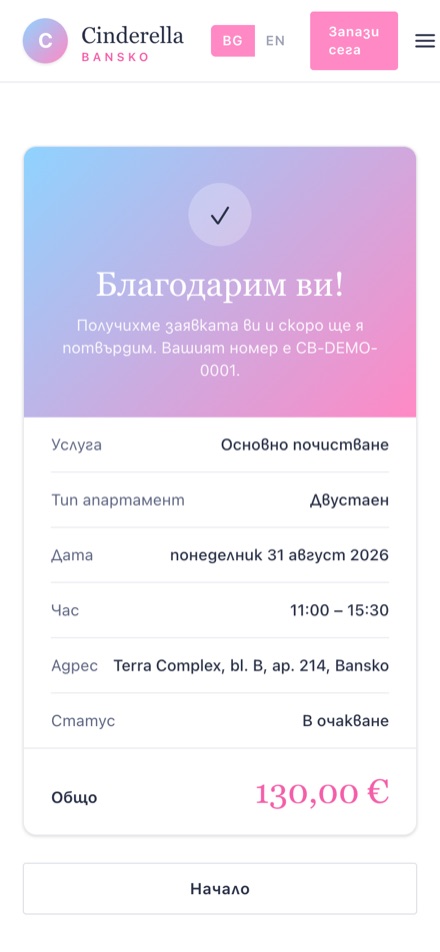
After sending you get a reference. Quote it and the office finds your booking immediately.
Your account
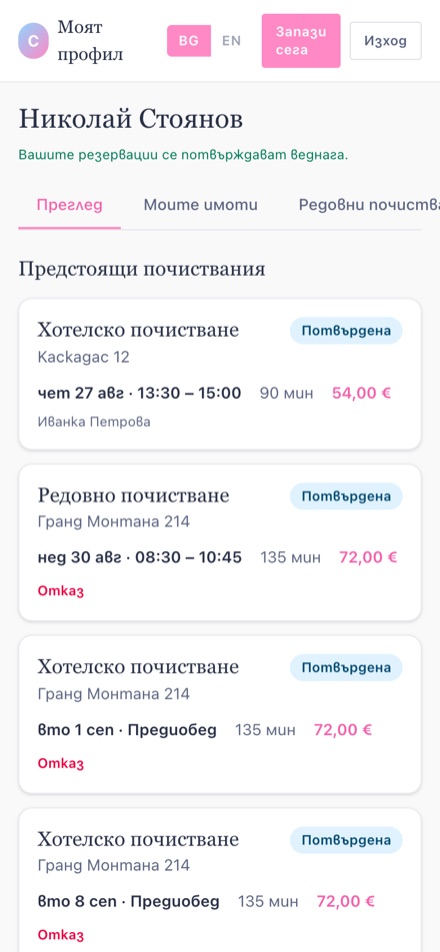
Regular customers get an account. The overview shows your upcoming cleans with the price and, once assigned, the name of the cleaner.
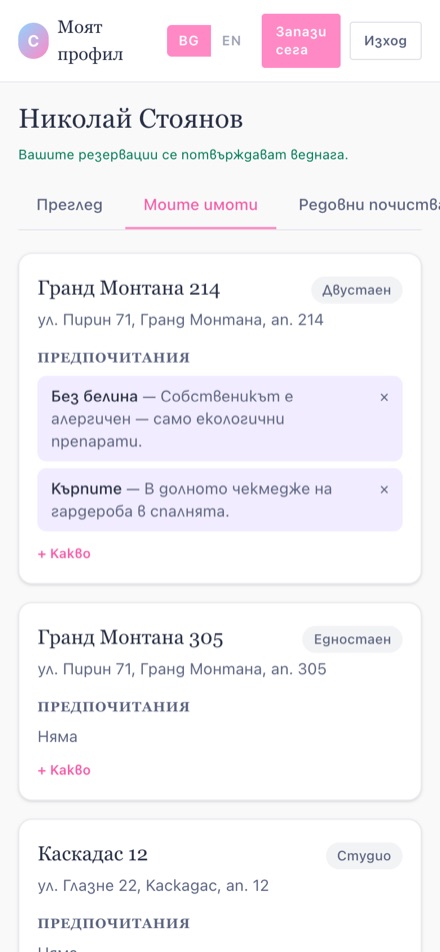
Under each property you keep your preferences: no bleach, towels in the bottom drawer, the cat must not go on the balcony. Those appear on the cleaner’s screen when she is at your place.
For recurring cleans you agree something like “every Tuesday morning”. The system creates the bookings itself, up to two months ahead, and looks for the hour each time — a Tuesday in February is not as busy as a Tuesday in July.
Part two
For cleaners
One hand, a phone, a stairwell. Everything you need is on the job card itself — you never have to ring anyone to find out where the key is.
Your day
The date sits at the top with arrows either side, and below it two counters: how many jobs are done and how many hours are planned. Every job is a card, and its colour tells you at a glance where it stands.
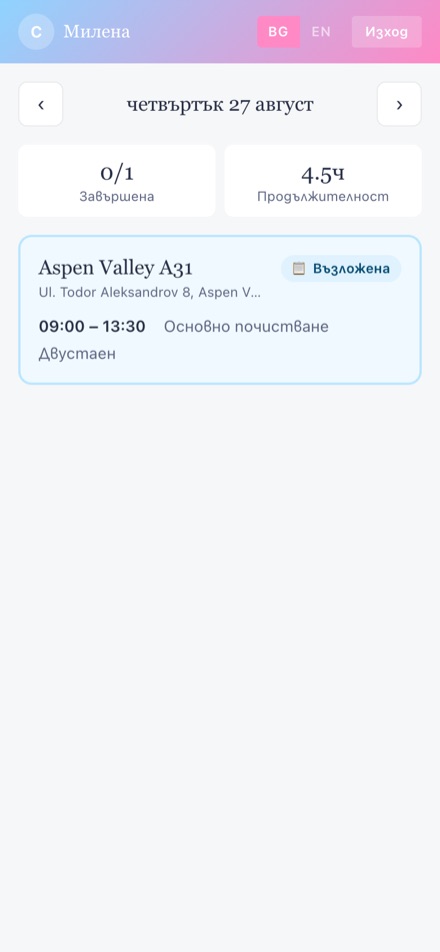
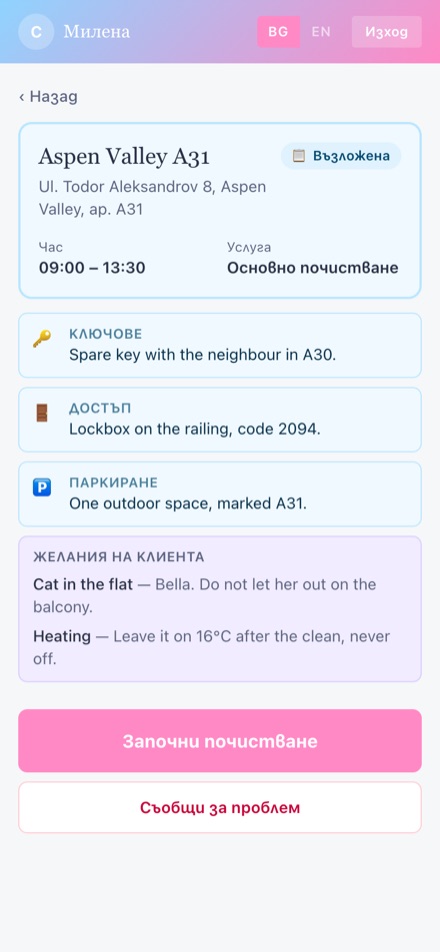
The screen refreshes itself every thirty seconds. If the office changes your day while you are out, you will see it without reloading.
| Colour | Status | What it means |
|---|---|---|
| 📋 Assigned | Assigned to you, not started | |
| 🧹 In progress | You are working on it | |
| ✅ Done | Finished | |
| 🔍 Inspected | Checked by the office | |
| ⚠️ Blocked | You could not continue — the reason is on the card |
During the job
After “Start cleaning” the checklist appears. It differs per service — a deep clean asks for different points than a laundry run — with three kinds: a tick, a number, or a photo. Points with a red star are required.
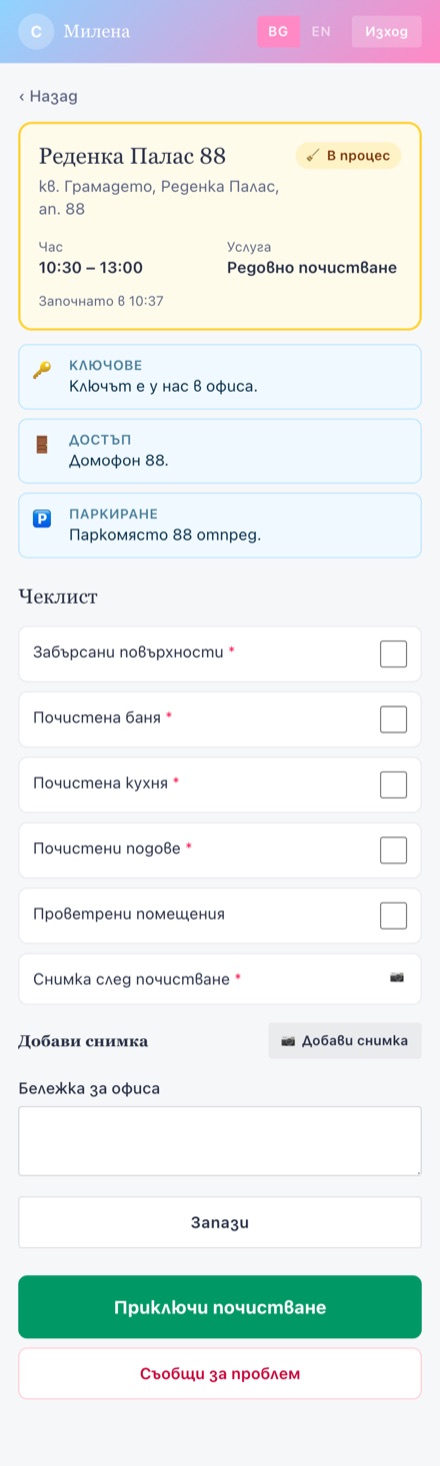
Photos are taken with the camera button. The note field is for anything that does not fit a tick: a dripping tap, a broken glass.
“Finish cleaning” closes the job and records how long you were there — from the start button until now. If a required point is missing, the screen will not close it.
If you cannot continue
A door that will not open, the guest still inside, damage. With “Report a problem” you type what is wrong, and the job turns red on the office screen with your explanation.
That is better than skipping it: the office knows why straight away and can ring the owner.
Part three
For the office
Confirming, assigning, setting hours and managing the roster. This screen is built for a phone too — you plan from the car, not from a desk.
The planning board
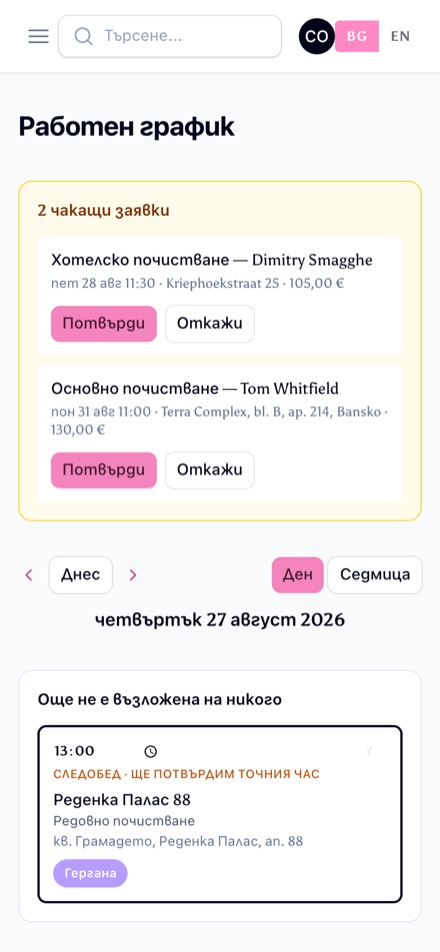
Requests from new customers sit in a yellow bar at the top with two buttons: confirm or decline. Confirming turns it into a job immediately. Existing customers are not in that bar — theirs are confirmed automatically.
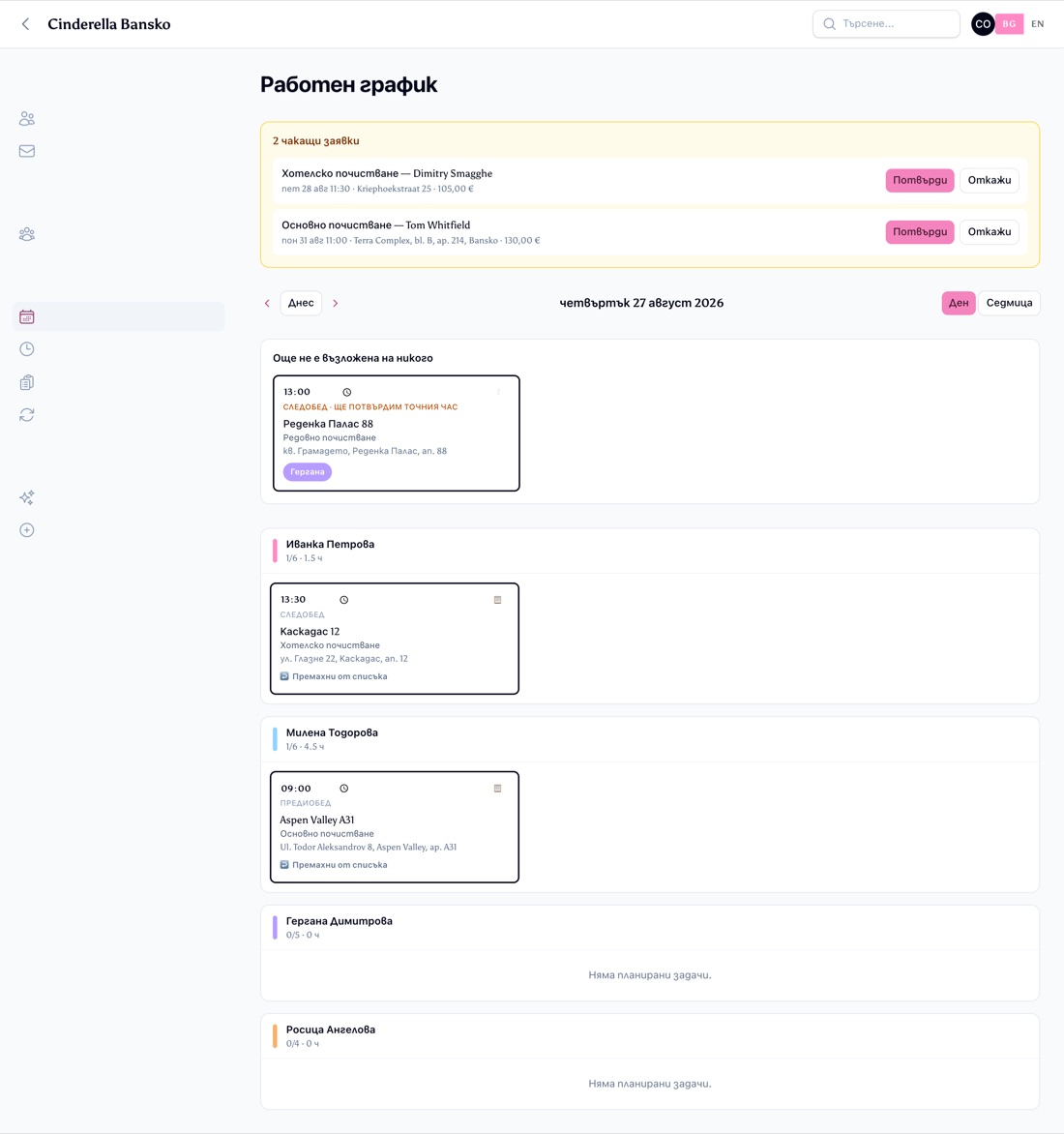
One block per cleaner in her colour, with the number of jobs and hours. Switch between day and week at the top right.
Assigning cannot go wrong
For a job nobody has yet, only the people who are actually free at that moment are offered. Double booking is not a matter of paying attention — it simply cannot happen.
The customer chose a half-day, not an hour. Every card therefore has a time field where you set it for good. You may move it within that half-day; outside it the screen refuses, because that part was agreed with the customer. Until you set the hour, the customer sees only “Morning” — no time that might still shift.
Availability — the hinge
What you set here decides what customers can book. Put nobody on Saturday and Saturday disappears from the booking calendar.
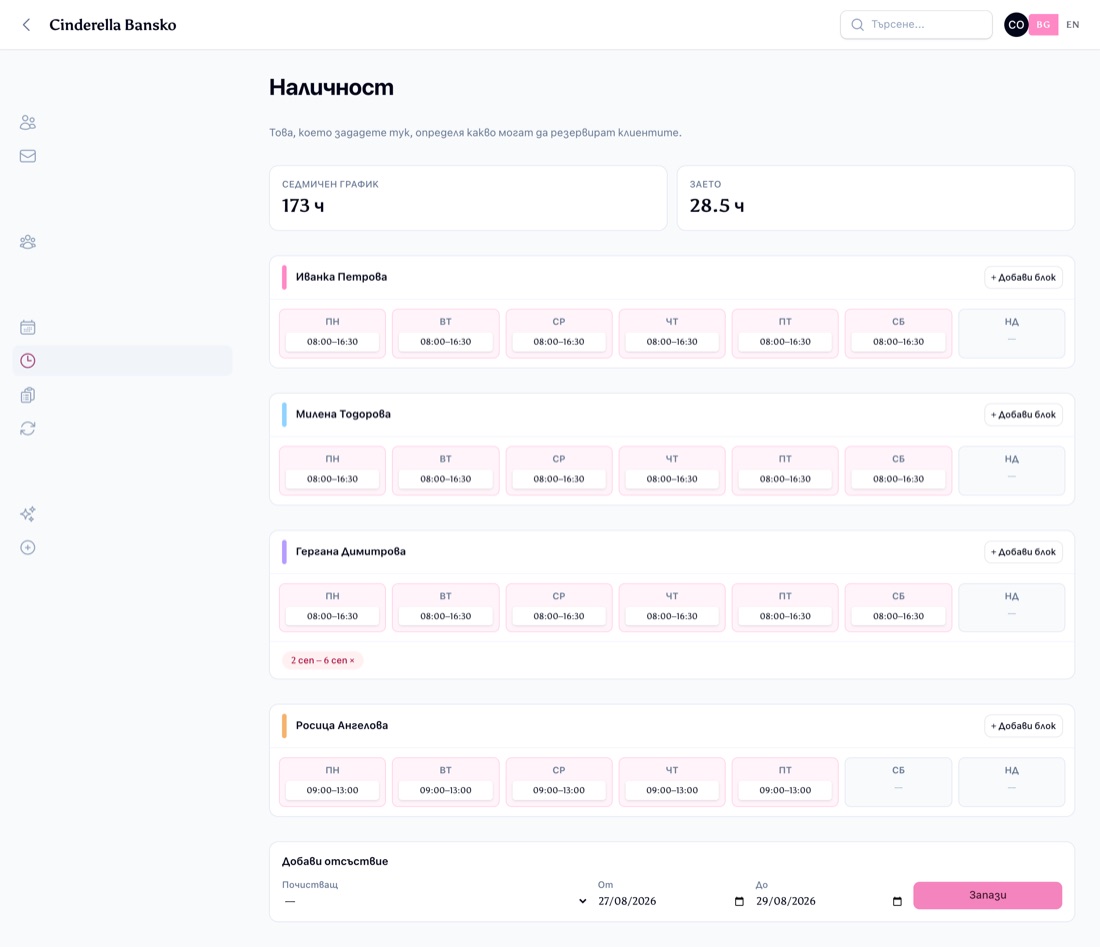
One row per cleaner with the seven weekdays. Several blocks on one day is fine: a morning and an afternoon with a break between them are simply two blocks. The top of the screen shows how many hours the team offers this week against how many are already committed.
Absences override the weekly pattern. Those days vanish immediately from what customers can book.
Between two jobs the system keeps travel time free, half an hour by default. That is why less fits than you might expect at first glance.
Bookings, customers and services
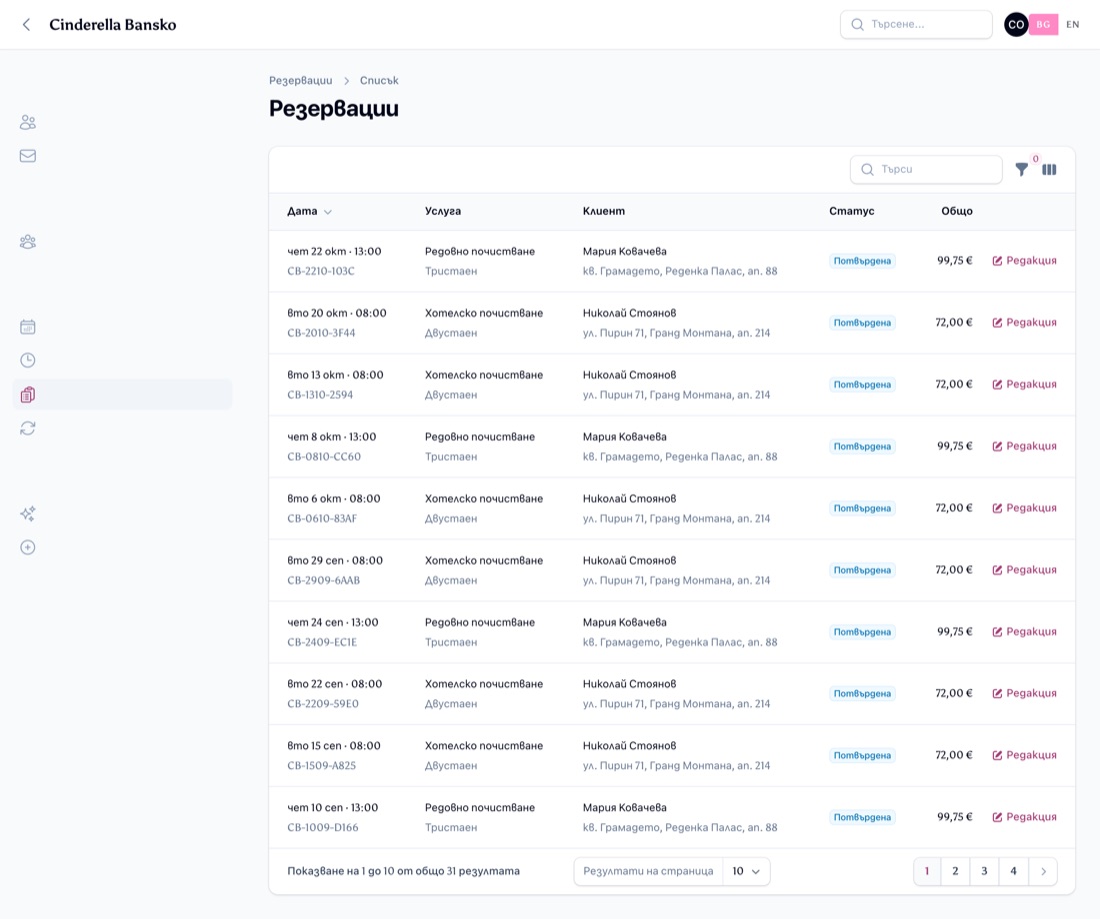
All bookings, newest first, with the date and hour — or the half-day if the hour is not set yet. Requests can be handled here as well.
Under a customer sit their properties, and that is where the cleaner’s practical details belong: key, entry code, parking, things to watch. The better that is filled in, the fewer phone calls you get.
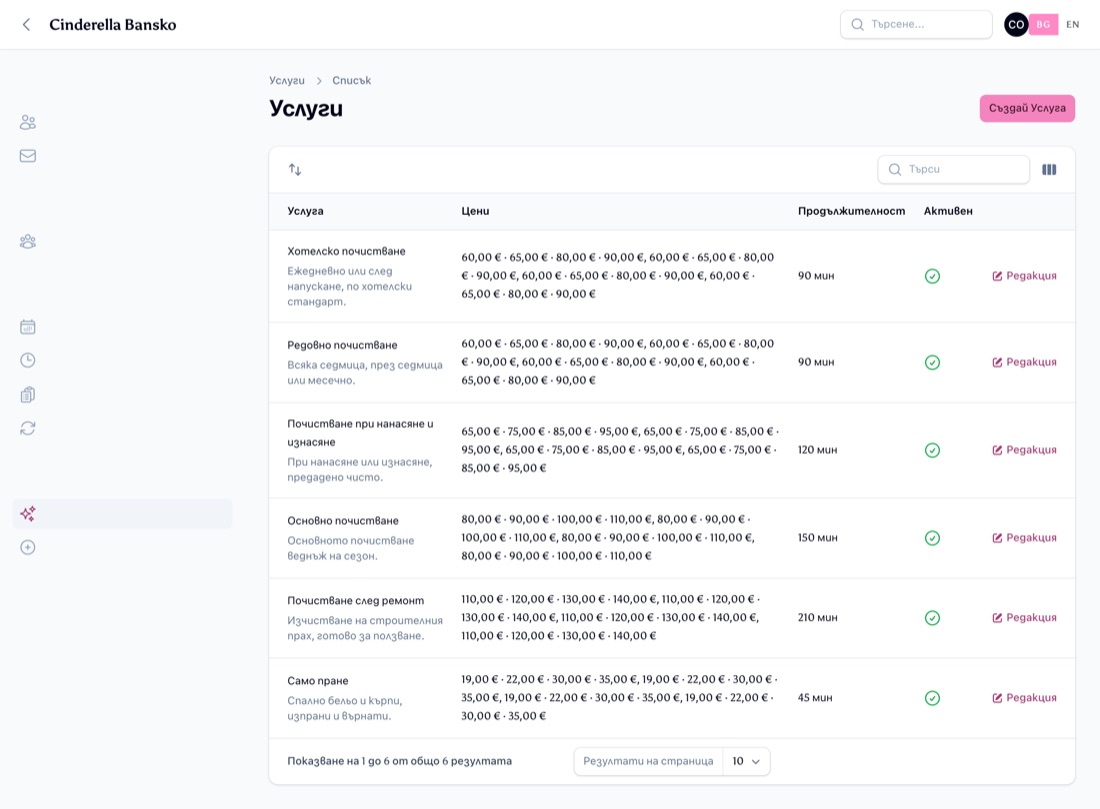
Under each service sit the four prices and the checklist the cleaner ticks off. Points marked required must be filled in before she can close the job.
Prices live in one place
On the old site they were hard-coded in three places and contradicted each other: the home page showed 40 € where the services page asked 60 €, and the Bulgarian page listed “Studio — 1 000 000 €”. Here they come from the database.
Recurring cleans and messages
Customers’ standing appointments are listed separately. Every night at half past three the system turns them into bookings, up to two months ahead. If you do not want to wait, press “Plan” — running it twice does no harm, because what already exists is not created again.
Anything sent through the contact form lands under Messages, with the number still open shown next to the menu item.
The whole site works in Bulgarian and English. The language sits in the address (/bg/… and /en/…), so a link you forward opens in the right language for whoever receives it.
Customers and cleaners sign in at /bg/login. The office has its own screen at /admin. After signing in everyone lands in the screen that belongs to their role.
This is a demonstration version. The data you see is made up.